
What is TRARO
TRARO is an Autodesk Revit add-in that turns your model into pieces with a visual language of their own: video with cinematic camera movement, and a style system you can apply to any view, 3D or 2D. All inside Revit, with no model export and no render engine.
It runs on Revit 2025, 2026 and 2027. It is built by Mediaquadra SpA in Pucón, Chile. There is a free version — unlimited navigation and preview, and three watermark-free exports — and the full licence is a one-time payment.
The problem it solves
An architect finishes the model and needs to show it. At that point two roads open, and both are expensive: learn a render engine — export, assign materials, place lights, wait — or hand over Revit screenshots, which carry nothing.
There is a third road, and it is the one TRARO opens: the project seen the way you would draw it, in motion, from the model you already have open.
How the movement works
TRARO starts from a different premise than a render engine: the view you already framed is the right one. That framing is the reference point, and the 15 movements are computed around it.
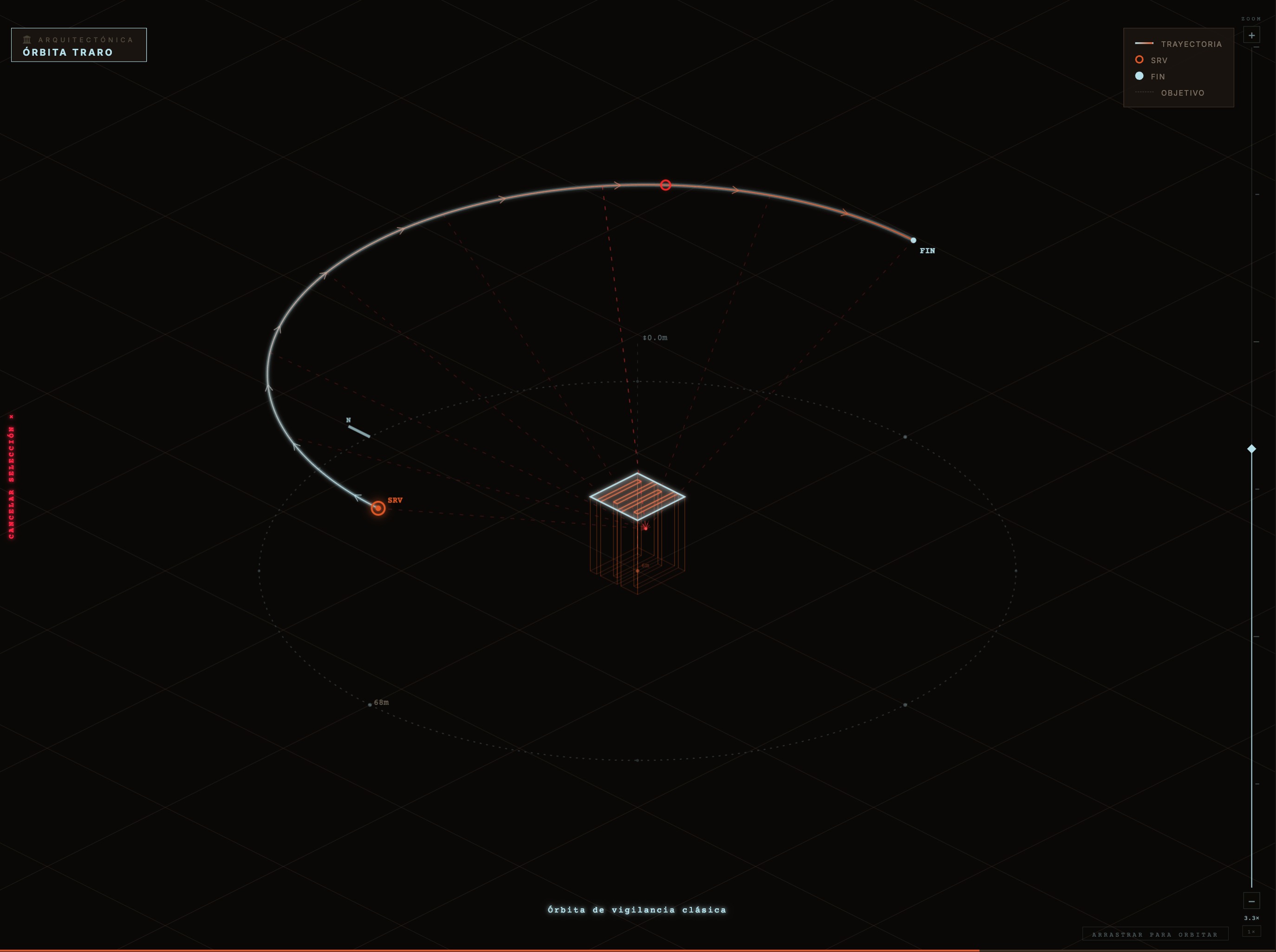
That is why there is nothing to set up before recording. And when none of the 15 movements fits, the Path Editor lets you place your own points and draws a smooth curve between them: the free-form walkthrough you already know, without setting frame after frame.
 Path Editor
Your own trajectory, with smooth interpolation between the points you place. Everything you would do with a Revit walkthrough, in fewer steps.
The three parts
TRARO Manager
Decides where to look. The 15 movements and the Path Editor. It records the video, and exports the camera path to Enscape, Twinmotion or D5.
 TRARO VIZ
Decides what is inside the frame. Style systems per Revit category — color, line weight, transparency, silhouettes — applied to 3D and 2D views.
 TRARO LOOK
Decides how the image is remembered. Color grading over the video: contrast, shadows, grain, vignette, chromatic aberration.
A style of your own, across the whole project
This is the part that surprises people who came looking only for a video. TRARO VIZ is not a filter: it is a system. You define the color, line weight and transparency of every group of elements — structure, envelope, vegetation, furniture — and that becomes a Signature: your visual signature, saved and reusable.
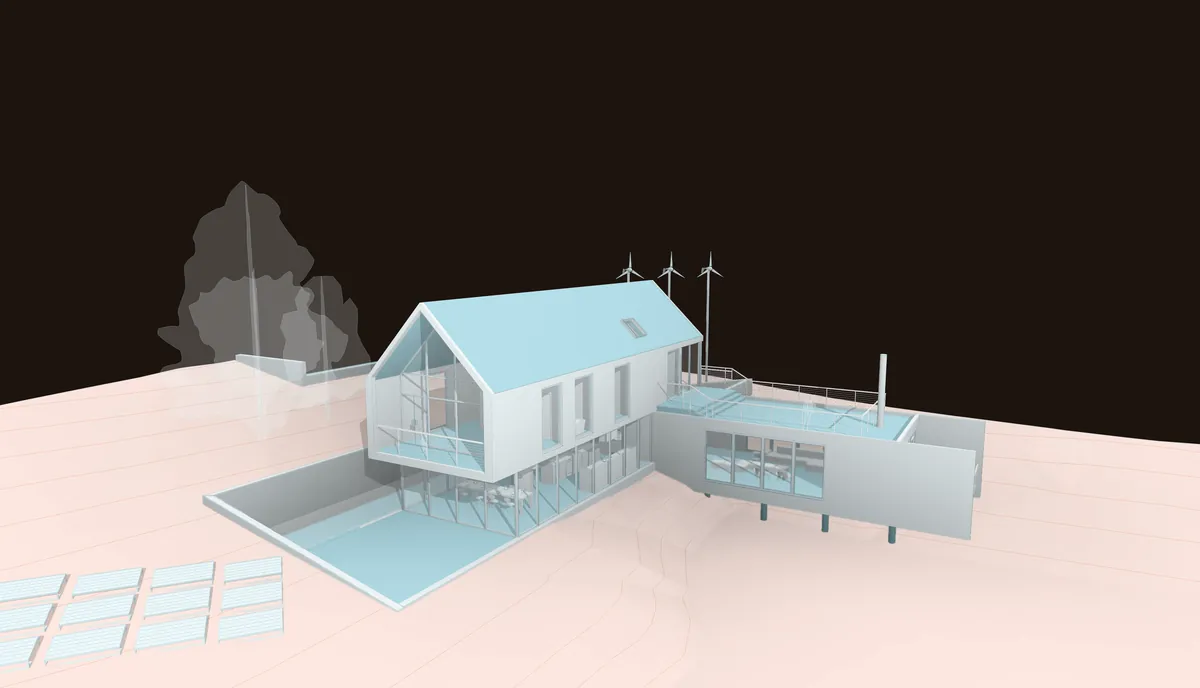
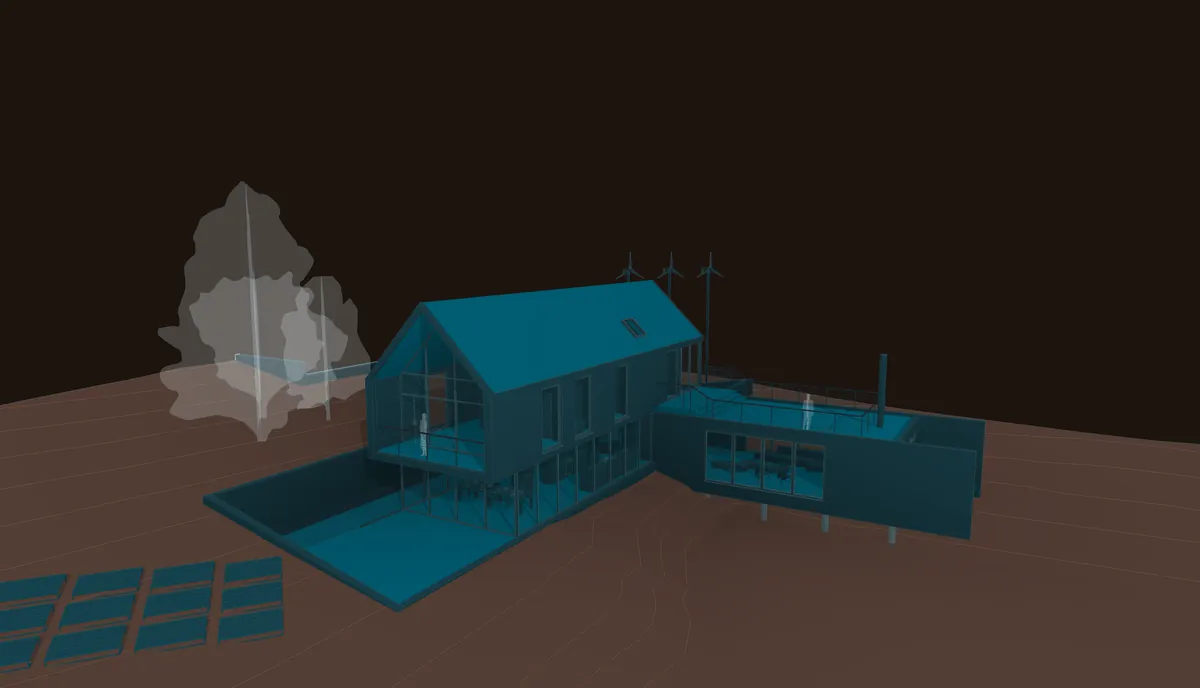
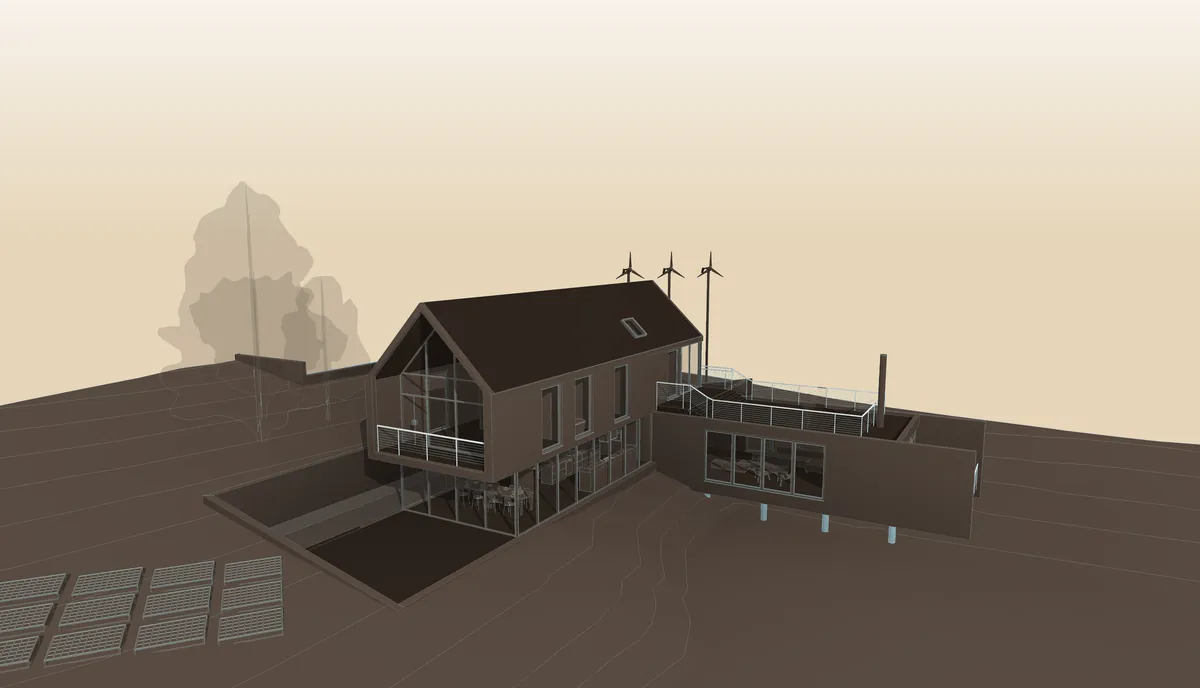
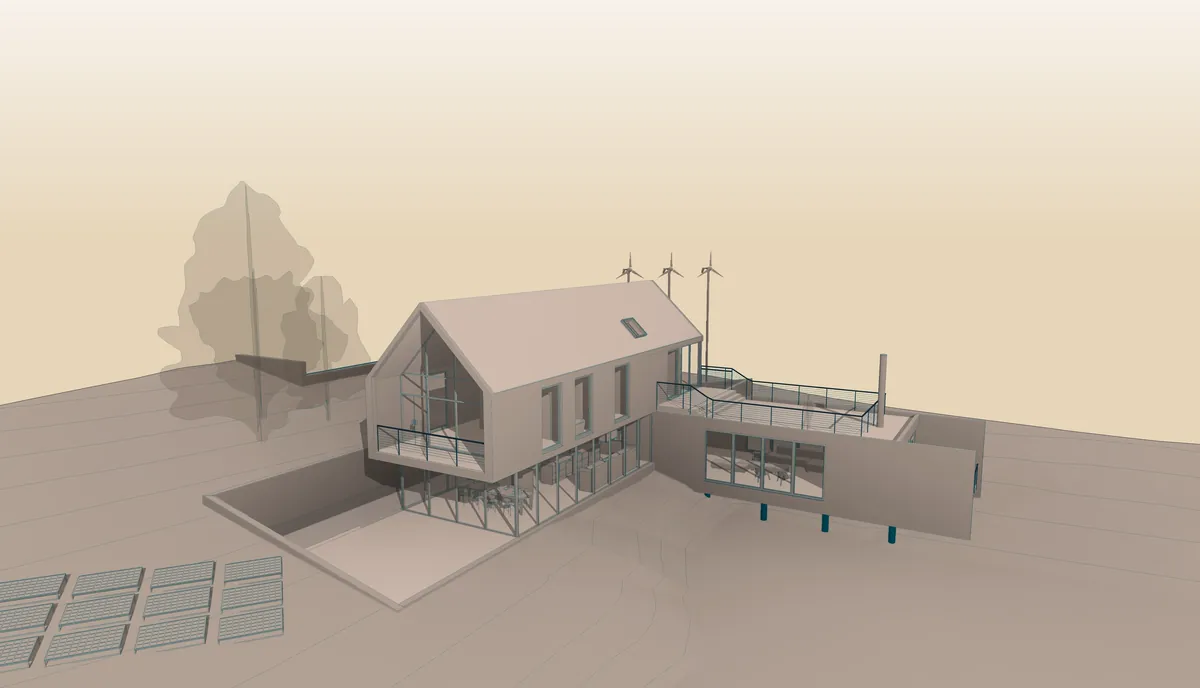
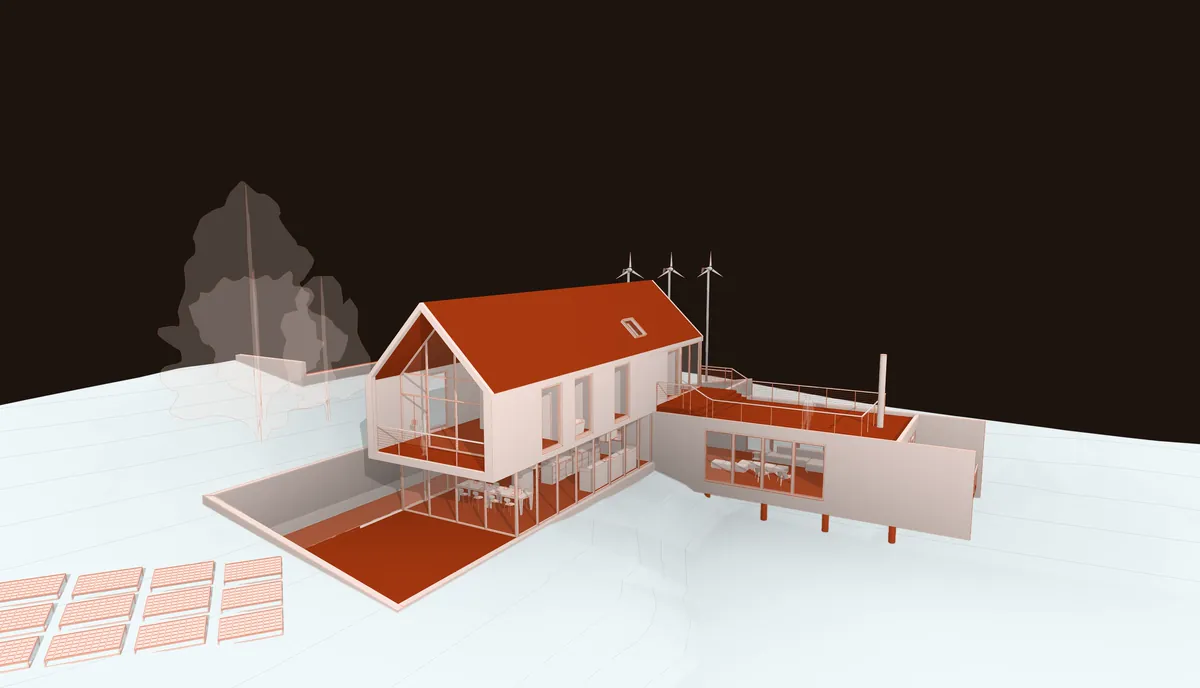
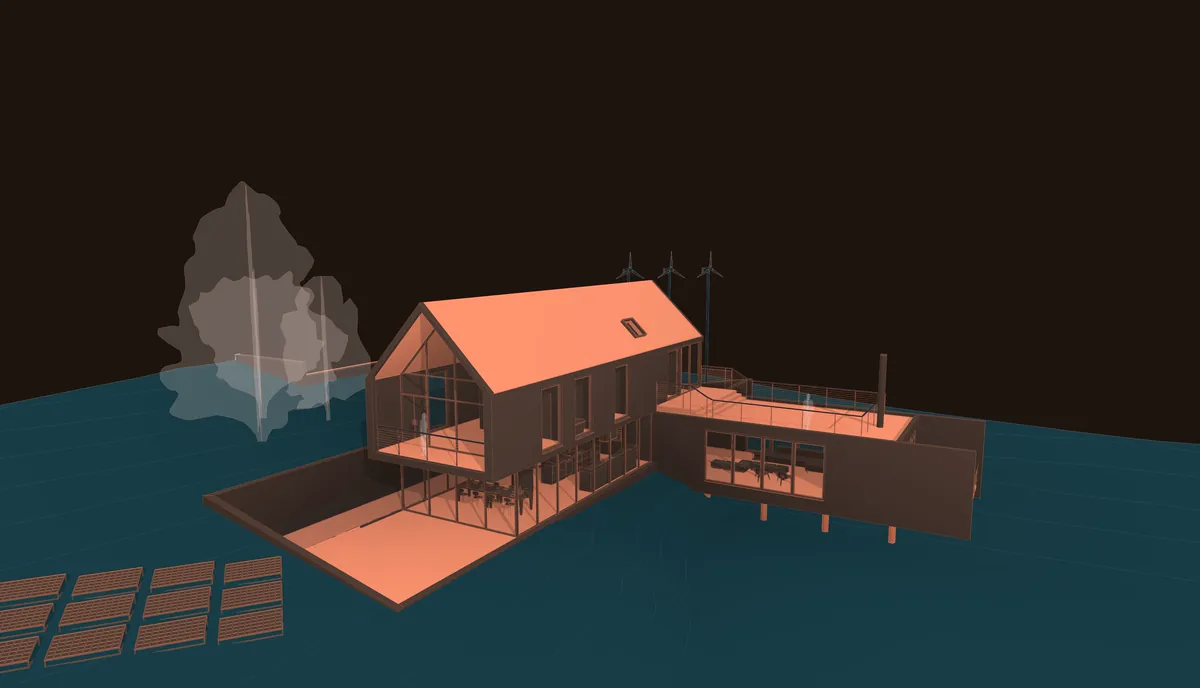
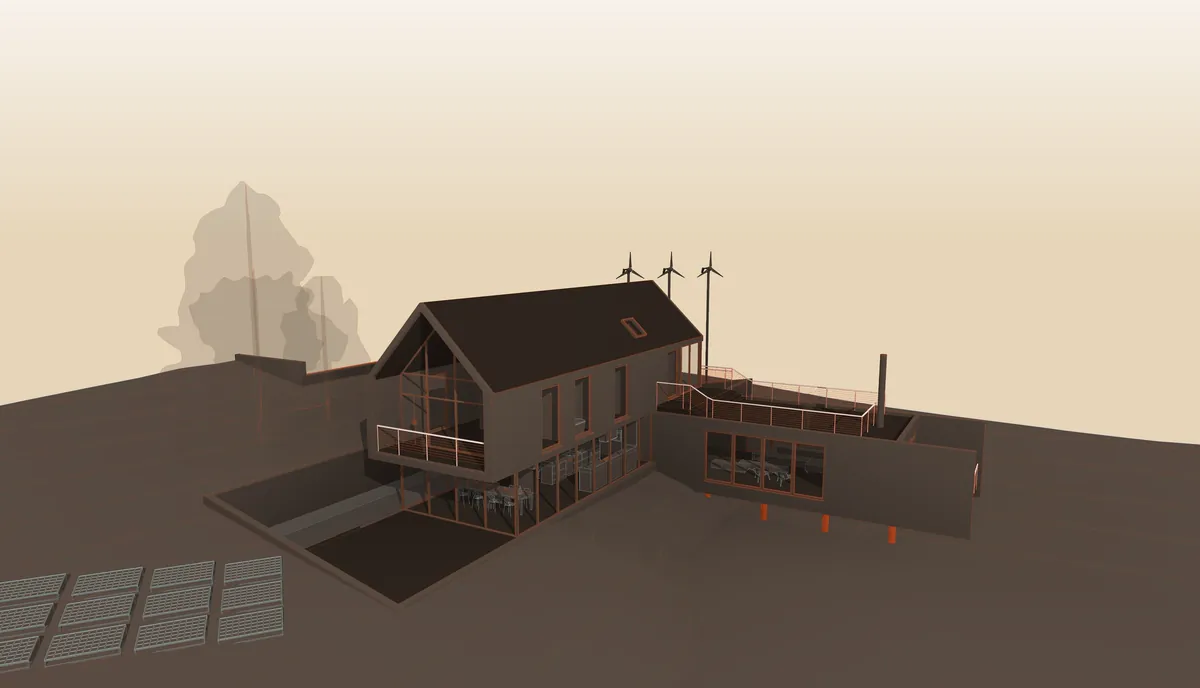
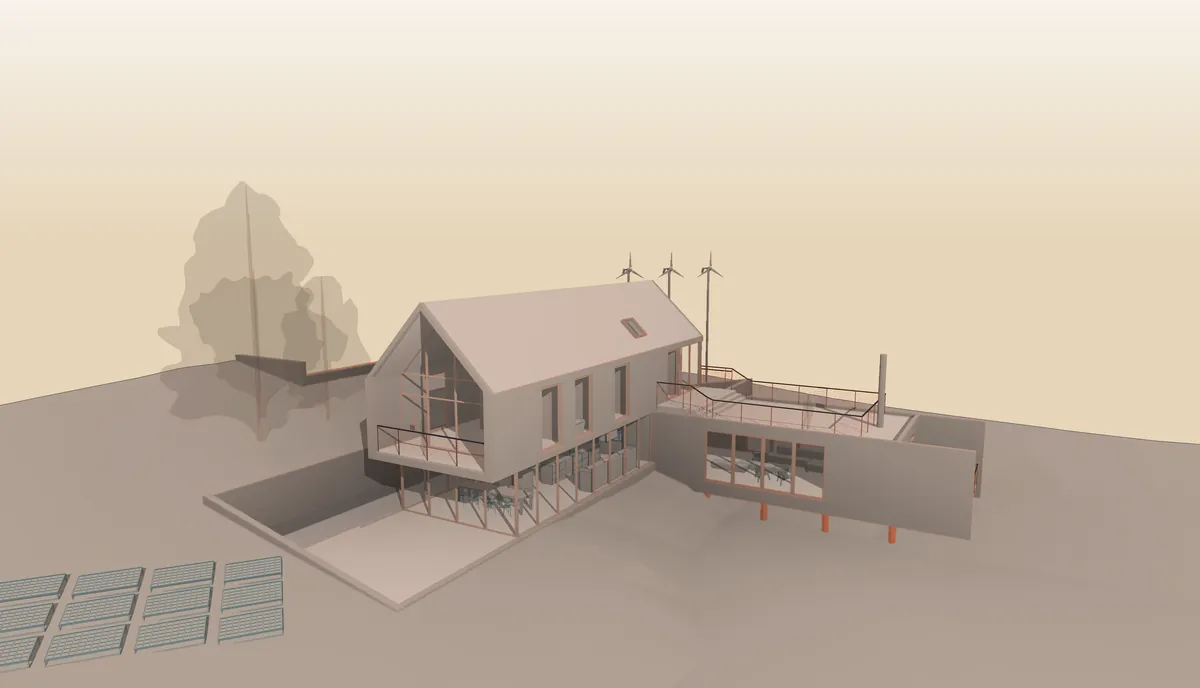
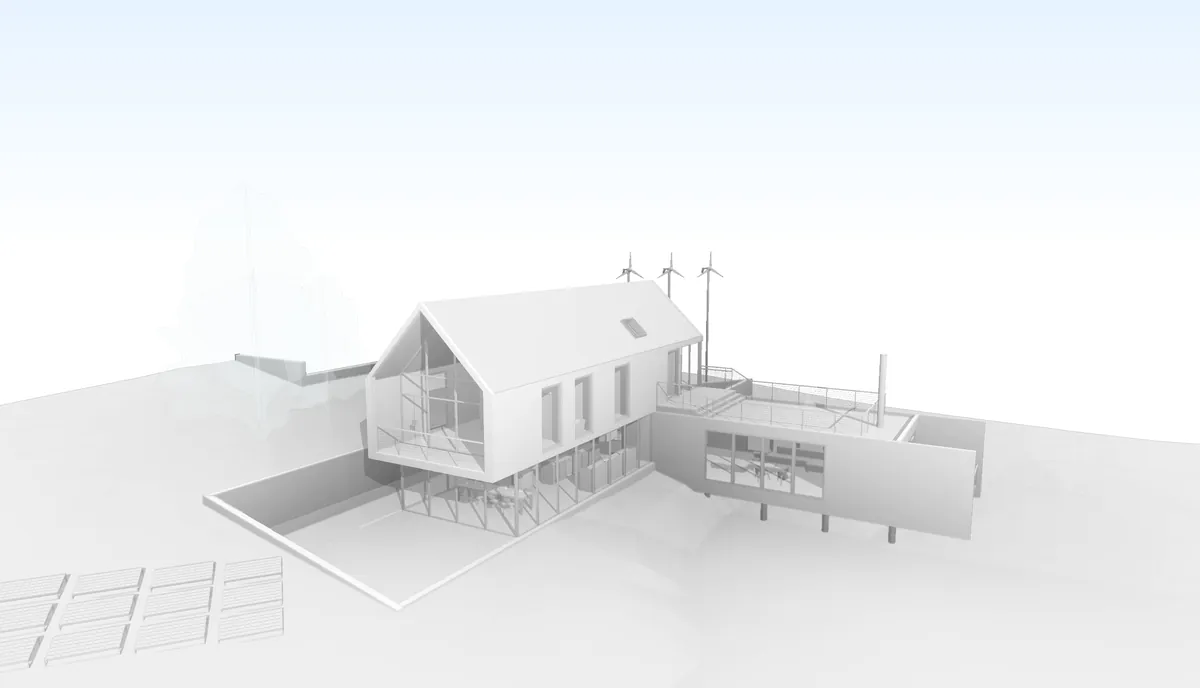
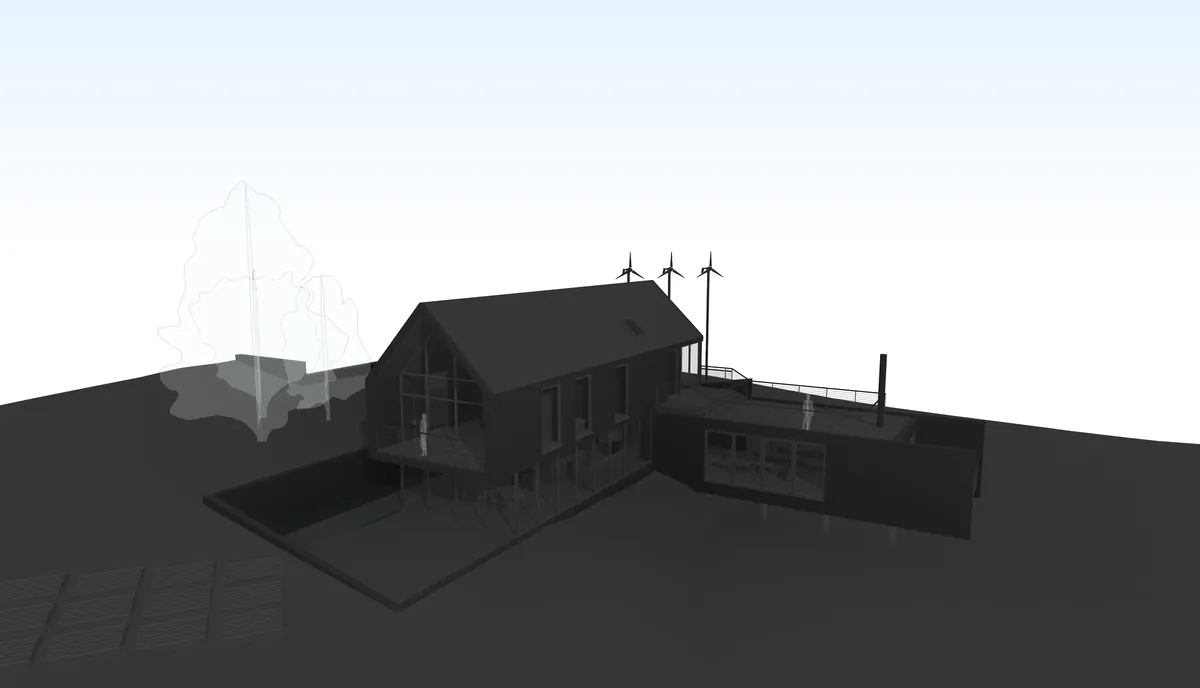
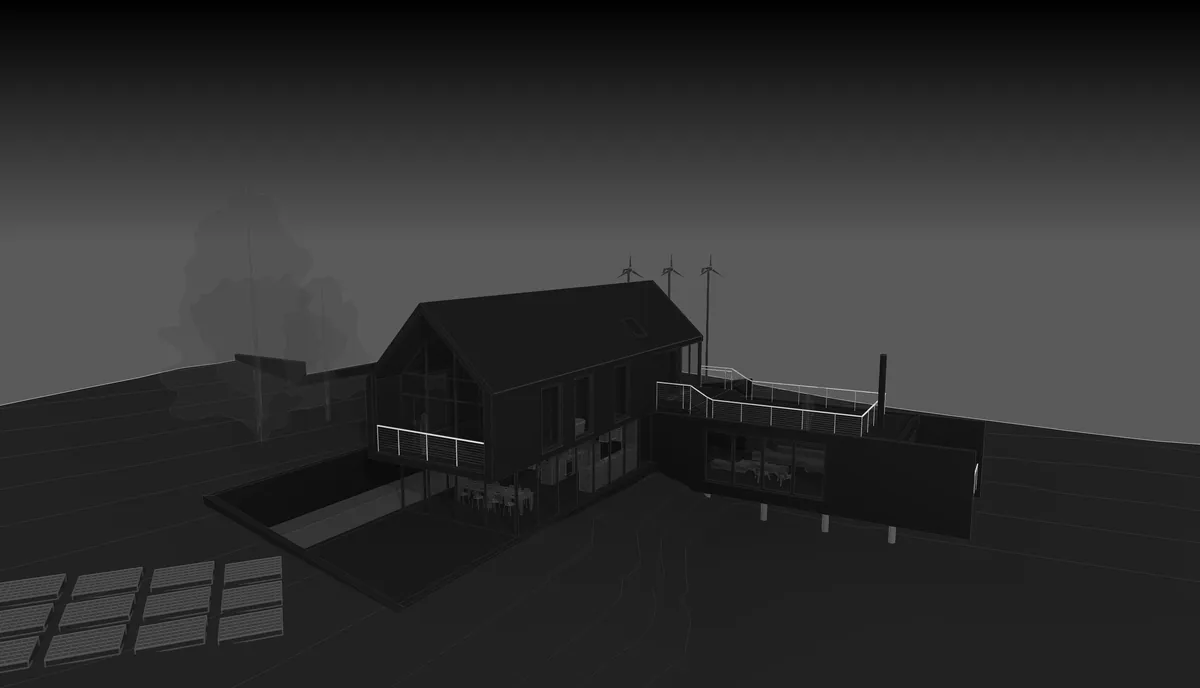
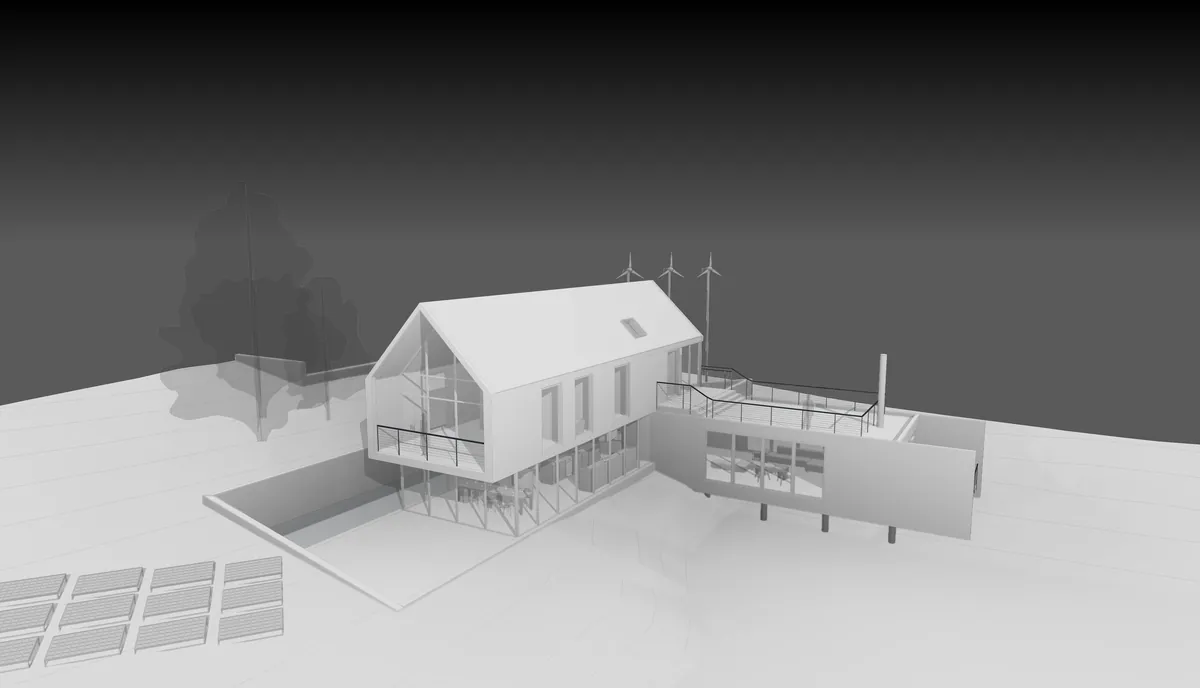
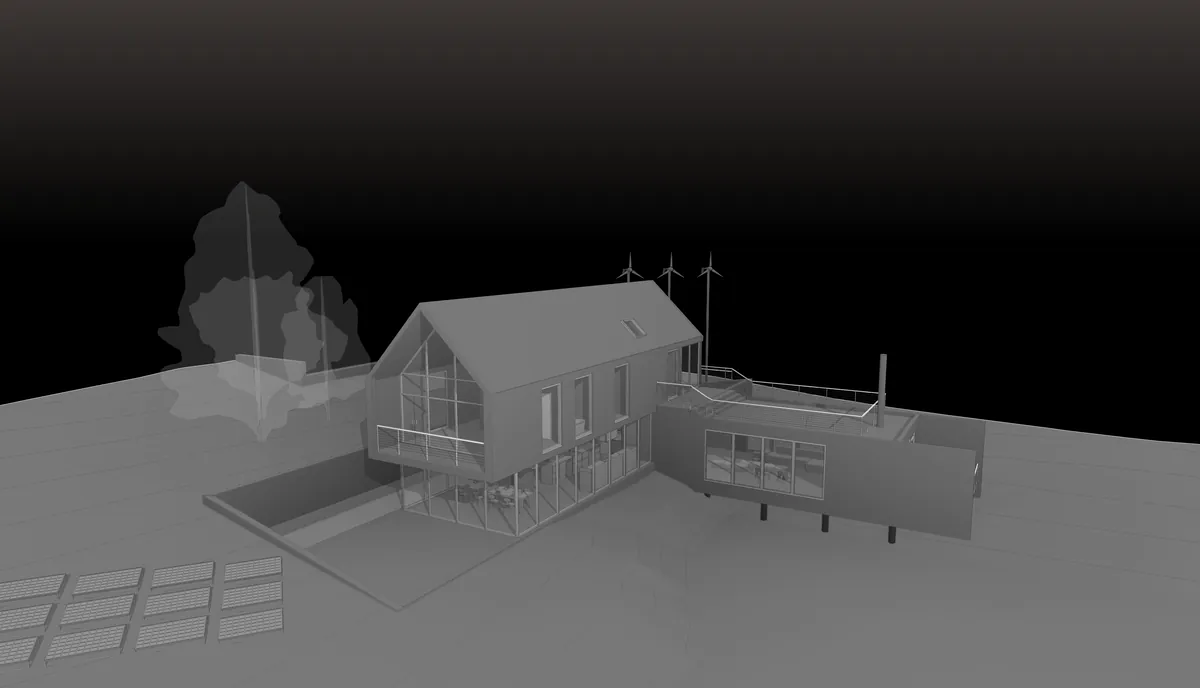
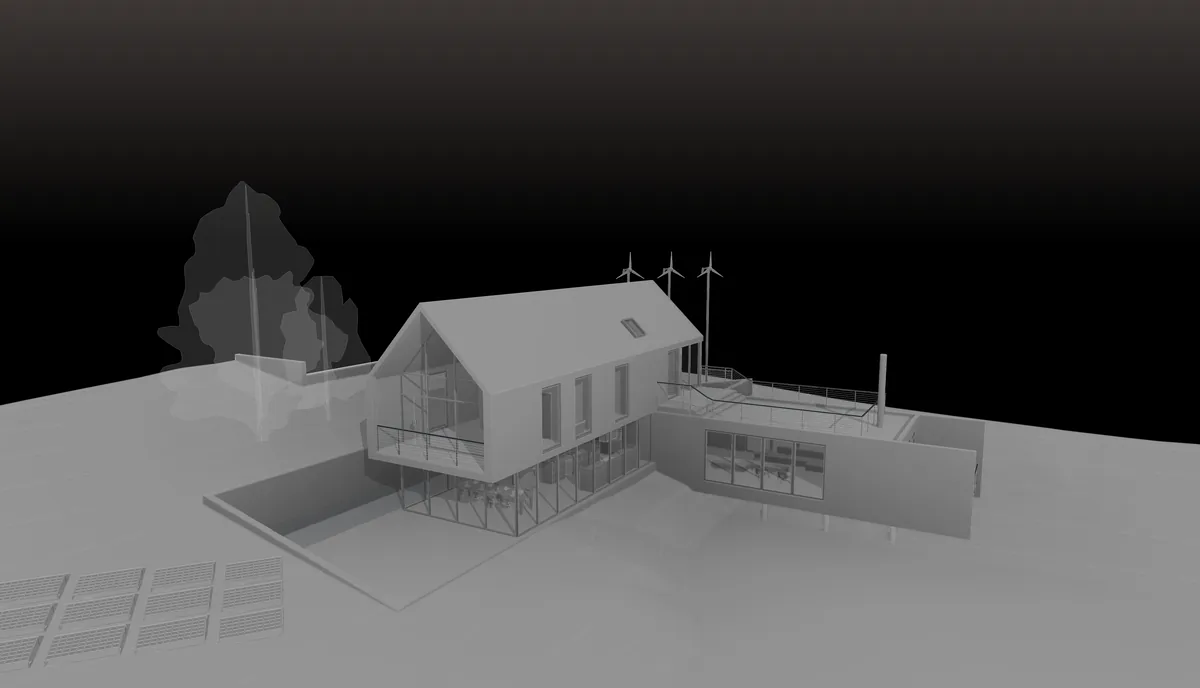
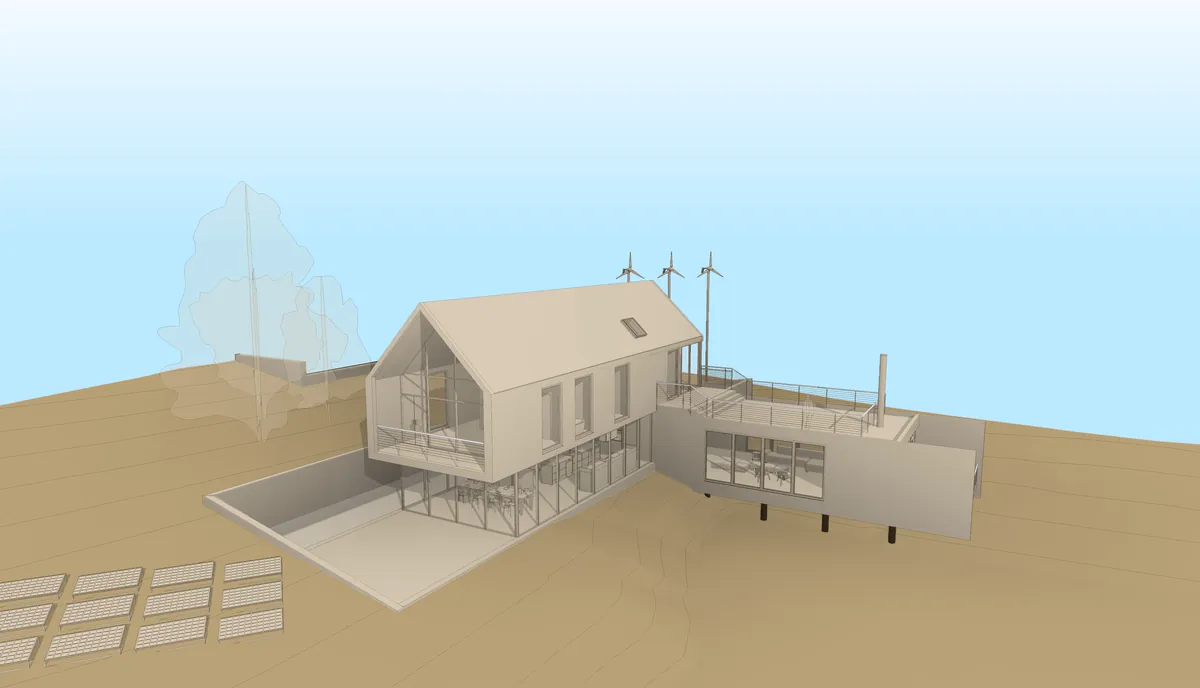
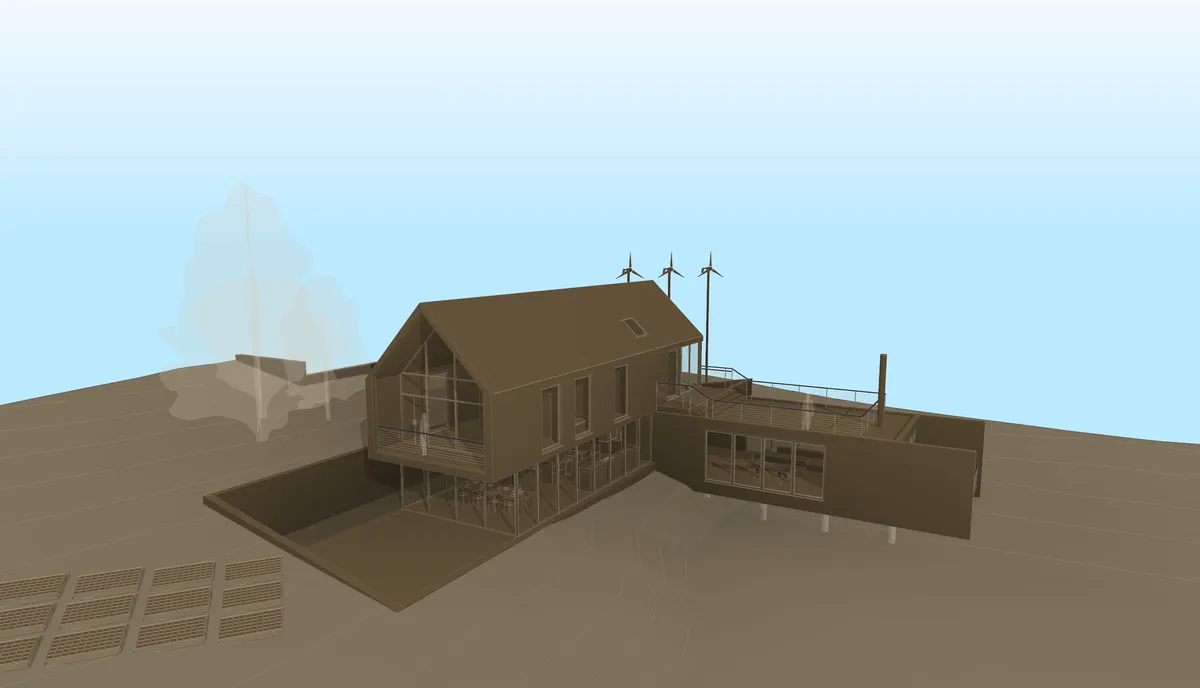
The same model, two Signatures. Neither touches the geometry.
A Signature applies to the active view, to several views at once, or gets promoted to a native Revit view template — a real View Template that stays in the project and works whether or not TRARO is open. And it applies to a floor plan, a section or an elevation just as it does to a 3D view: your whole project can speak the same graphic language.
That is the point: two studios with the same model and the same software deliver the same thing. With a Signature of your own, your work is recognisable before anyone reads the title block.
What it does and what it does not
| Yes | No |
|---|---|
| Records MP4 video from the model open in Revit | It is not a render engine: no photorealistic images |
| Solves the movement with 15 computed modes, or with your own path | It does not assign materials, textures or lighting |
| Exports the camera path to Enscape, Twinmotion and D5 Render | It does not export the model geometry to another program |
| Applies style systems to 3D and 2D views, and saves them as a Revit template | It does not modify the project geometry |
| Exports landscape and 9:16 vertical for social media | No people, vehicle or 3D vegetation library |
| Resumes an interrupted render without losing the work | There is no native macOS build |
What about Mac? It works, the same way Revit does: inside a Windows virtual machine. TRARO's own author develops and uses the add-in from a Mac running Parallels. What you need is a Windows licence and a VM; TRARO cannot tell the difference between that and a PC.
Who it is for
For the architect or small studio working in Revit who needs to deliver something that looks like theirs, this week, without adding a new program to the workflow. And for anyone already using a render engine who is tired of fighting the camera: there, TRARO is the missing piece, not the replacement.
What it costs
The free version lets you navigate and preview all three modules with no limit, and your first three exports are full quality with no watermark. After that, the free version keeps working with the Architectural collection and a watermark. The full licence, TRARO Freelancer, is USD 39 once and it is yours for good. There is an annual option, TRARO Pass, for anyone who wants the new style collections as they ship; it is not required.
See all plans · Help center · Compared with the Revit Walkthrough · How it works with D5 Render and Enscape